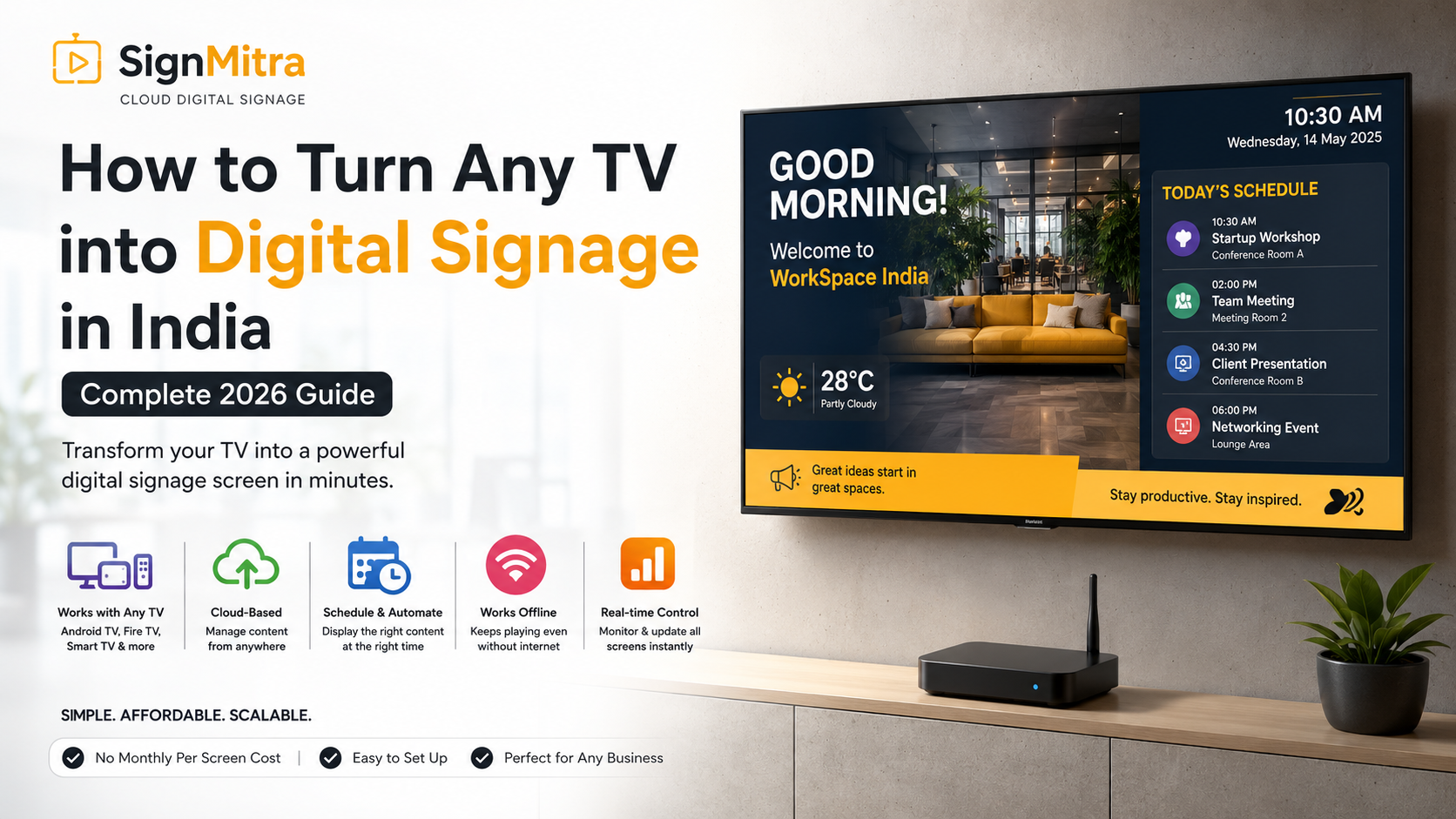
Can Any TV Be Used for Digital Signage?
Not all TVs are ideal for digital signage. While technically any TV can display digital content, factors such as durability, brightness, connectivity options, and compatibility with signage software affect performance. Consumer-grade TVs may lack features like 24/7 operation support or remote management capabilities that are critical for professional digital signage.
What Hardware is Required?
To deploy digital signage, you generally need the following hardware components:
- Display Screen: A TV or monitor suitable for your environment and content needs.
- Media Player: A device that runs the signage software and streams content to the display. This can be integrated (Smart TV) or external (Android box, Fire TV stick).
- Network Connectivity: Wired Ethernet or Wi-Fi to connect the media player to the internet or local network.
- Mounting and Power Accessories: Brackets, cables, and power supplies appropriate for your installation.
Smart TV vs Android TV vs Fire TV vs Android Box
Smart TV
Smart TVs come with built-in operating systems and apps. They offer convenience but may have limited app availability or performance issues for signage software. Updates and remote management can also be restricted.
Android TV
Android TVs provide a flexible platform with access to Google Play Store apps. They support many digital signage apps and offer better customization and remote management options.
Fire TV
Amazon Fire TV devices are affordable and easy to use but are more consumer-focused. They support many apps but may have limitations in enterprise features and remote control.
Android Box
Android boxes are standalone media players running Android OS, offering high flexibility, better hardware options, and full control over signage software. They are often preferred for professional digital signage deployments.
How Cloud Digital Signage Works
Cloud digital signage platforms like SignMitra allow you to manage content remotely through a web interface. Content is uploaded to the cloud, scheduled, and pushed to media players connected to your displays. This enables real-time updates, centralized control, and scalability across multiple locations.
Step-by-Step Setup with SignMitra
Prerequisites
- Compatible TV or display
- Media player device (Smart TV, Android TV, Fire TV, or Android box)
- Stable internet connection
- SignMitra account
Setup Steps
- Connect your media player to the TV via HDMI and power it on.
- Ensure network connectivity by connecting the media player to Wi-Fi or Ethernet.
- Install the SignMitra app on your media player device from the appropriate app store or sideload it if necessary.
- Log in to the SignMitra app using your account credentials.
- Configure your display settings within the app, such as screen orientation and resolution.
- Upload and schedule content through the SignMitra web portal.
- Verify playback on your display to ensure content is showing correctly.
Offline Playback
SignMitra supports offline playback, allowing your media player to cache content locally. If the internet connection is lost, the device continues displaying the last downloaded content without interruption. Once connectivity is restored, the device syncs with the cloud to update content.
Multi-Location Deployment
SignMitra’s cloud platform enables centralized management of multiple displays across different locations. You can group devices, assign content playlists, and monitor status remotely. This simplifies large-scale deployments and ensures consistent messaging.
Cost Comparison
Costs vary based on hardware choice and deployment scale:
- Smart TVs: Higher initial cost, limited flexibility.
- Android TV/Fire TV: Moderate cost, good app support.
- Android Boxes: Lower cost, high flexibility and control.
- SignMitra Subscription: Cloud service fees depending on number of devices and features.
Choosing the right hardware and subscription plan depends on your budget, required features, and scale.
Frequently Asked Questions (FAQs)
Can I use a regular TV without a media player?
Regular TVs need a media player to run digital signage software unless they are Smart TVs with compatible apps.
Is internet required for digital signage?
Internet is required for content updates and remote management, but offline playback is supported for uninterrupted display.
Can I schedule different content for different locations?
Yes, SignMitra allows scheduling unique content playlists for each display or group of displays.
What content formats are supported?
SignMitra supports images, videos, HTML5, and other common media formats.
How secure is the SignMitra platform?
SignMitra uses encrypted connections and secure authentication to protect your content and data.
How SignMitra Works
SignMitra is a cloud-based digital signage platform that simplifies content management and deployment. Users upload and schedule content via an intuitive web portal. The platform pushes content to connected media players, which display it on TVs or monitors. Features include remote monitoring, offline playback, multi-location management, and flexible hardware compatibility, making SignMitra ideal for businesses of all sizes looking to implement effective digital signage solutions.
Conclusion
Choosing the right TV and media player is crucial for a successful digital signage deployment. Understanding hardware options, leveraging cloud platforms like SignMitra, and following best practices for setup and management will ensure your digital signage is reliable, scalable, and impactful.

